> ## Documentation Index
> Fetch the complete documentation index at: https://risingwavelabs-wyx-add-timestamp-dedicated-page.mintlify.site/llms.txt
> Use this file to discover all available pages before exploring further.
# Create a PrivateLink connection
> Follow the steps below to create a PrivateLink connection between RisingWave Cloud and your VPC.
**Security and Encryption**
* All connections are automatically encrypted using TLS/SSL
* For AWS PrivateLink connections:
* Data in transit is encrypted using AWS internal network encryption
* Any data stored in S3 is encrypted at rest using AWS default encryption keys
* EBS volumes are encrypted using KMS managed keys with automatic key rotation
## Prerequisites
When setting up AWS PrivateLink services, do not use the AWS account root user. Always use IAM users or roles with appropriate permissions following AWS security best practices.
* You need to create a project with the Standard plan or Advanced plan in RisingWave Cloud:
* See [Choose a project plan](/cloud/choose-a-project-plan/) for more information. Please note that Trial projects do not support PrivateLink connections.
* The VPC you want to connect to and your project must be in the same region. If your preferred region is not available when creating a project, contact our [support team](mailto:cloud-support@risingwave-labs.com) or [sales team](mailto:sales@risingwave-labs.com).
* You need to set up a PrivateLink service in your VPC and make sure it runs properly. The following links might be helpful:
* For AWS, see [Share your services through AWS PrivateLink](https://docs.aws.amazon.com/vpc/latest/privatelink/privatelink-share-your-services.html).
* For GCP, see [GCP Published services](https://cloud.google.com/vpc/docs/about-vpc-hosted-services).
* For Azure, see [Azure Private Link services](https://learn.microsoft.com/en-us/azure/private-link/private-link-service-overview).
## Steps
1. Go to the [**Project**](https://cloud.risingwave.com/project/home/) page and select the project you want to connect the VPC to.
2. Select **PrivateLink** tab, and click **Create PrivateLink**.
3. For **Name**, enter a descriptive name for the connection.
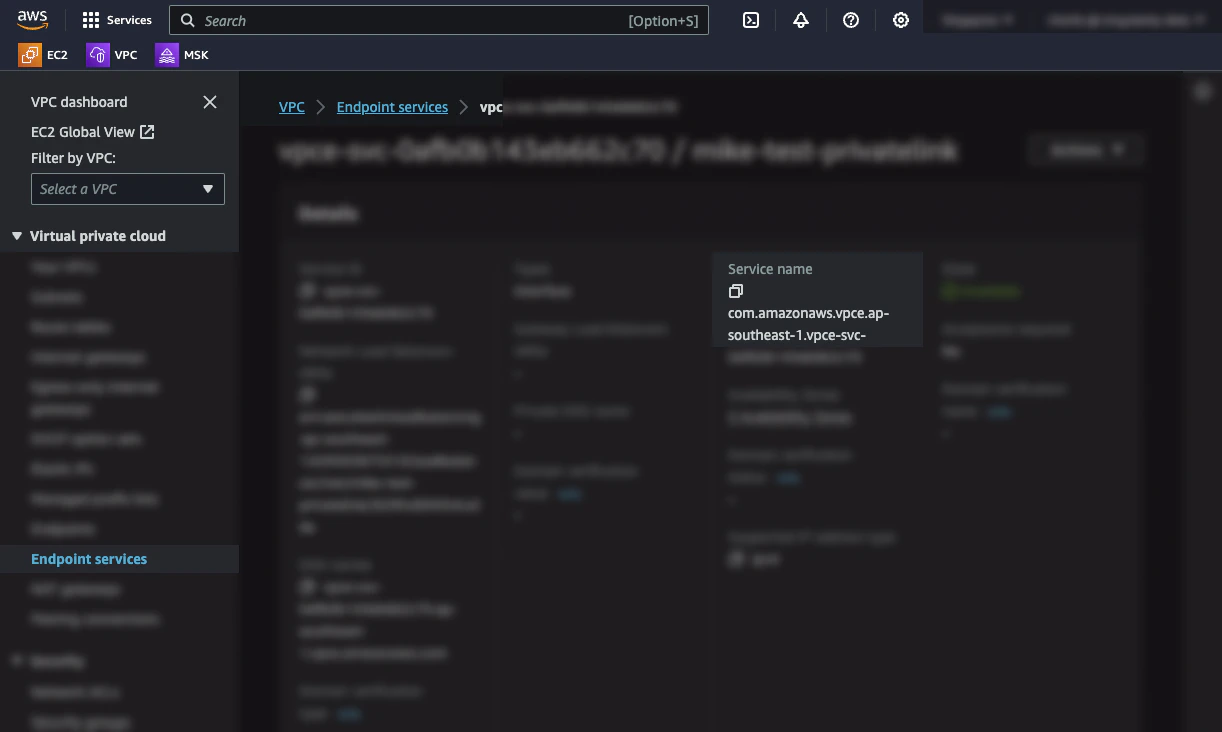
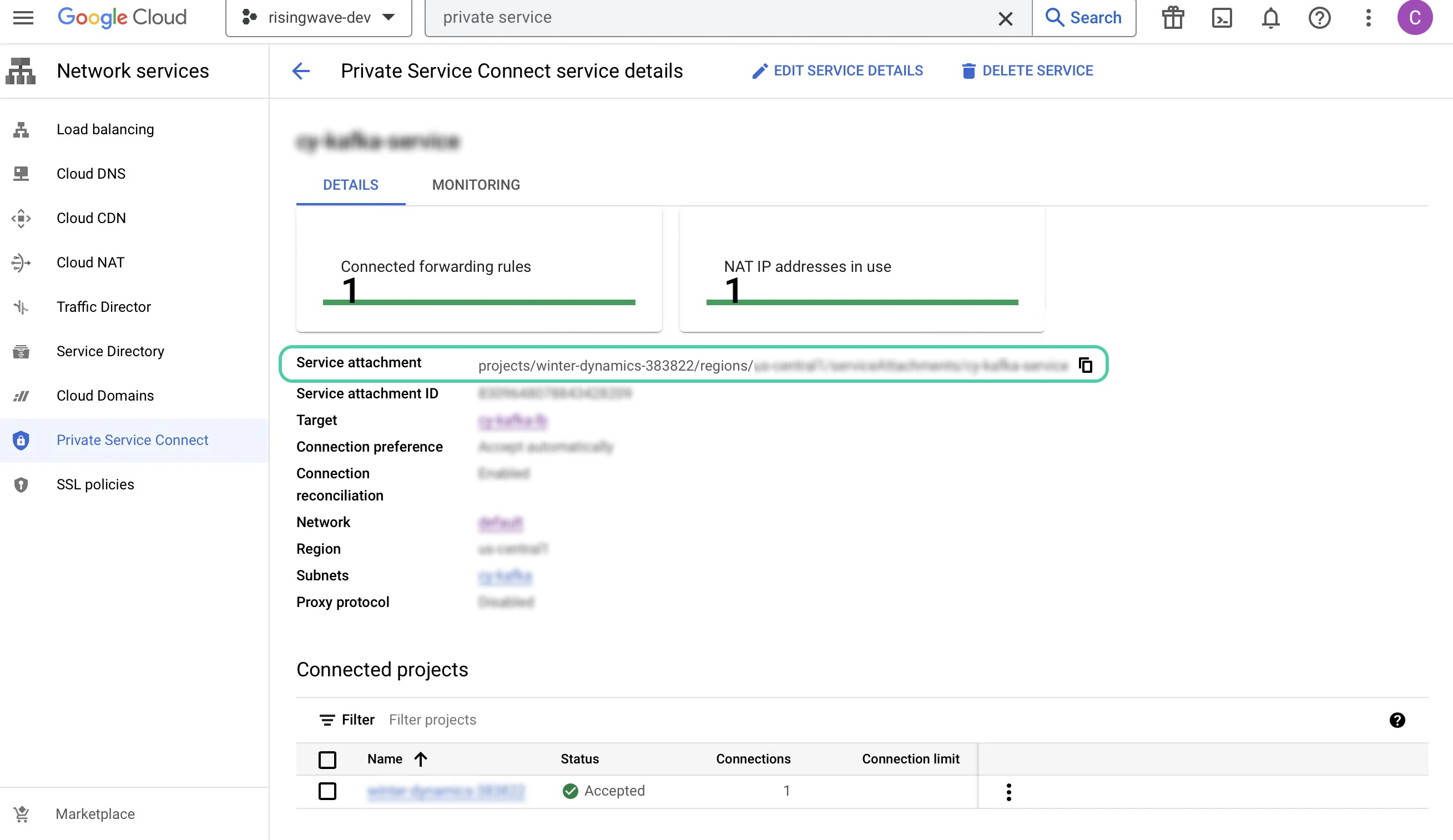
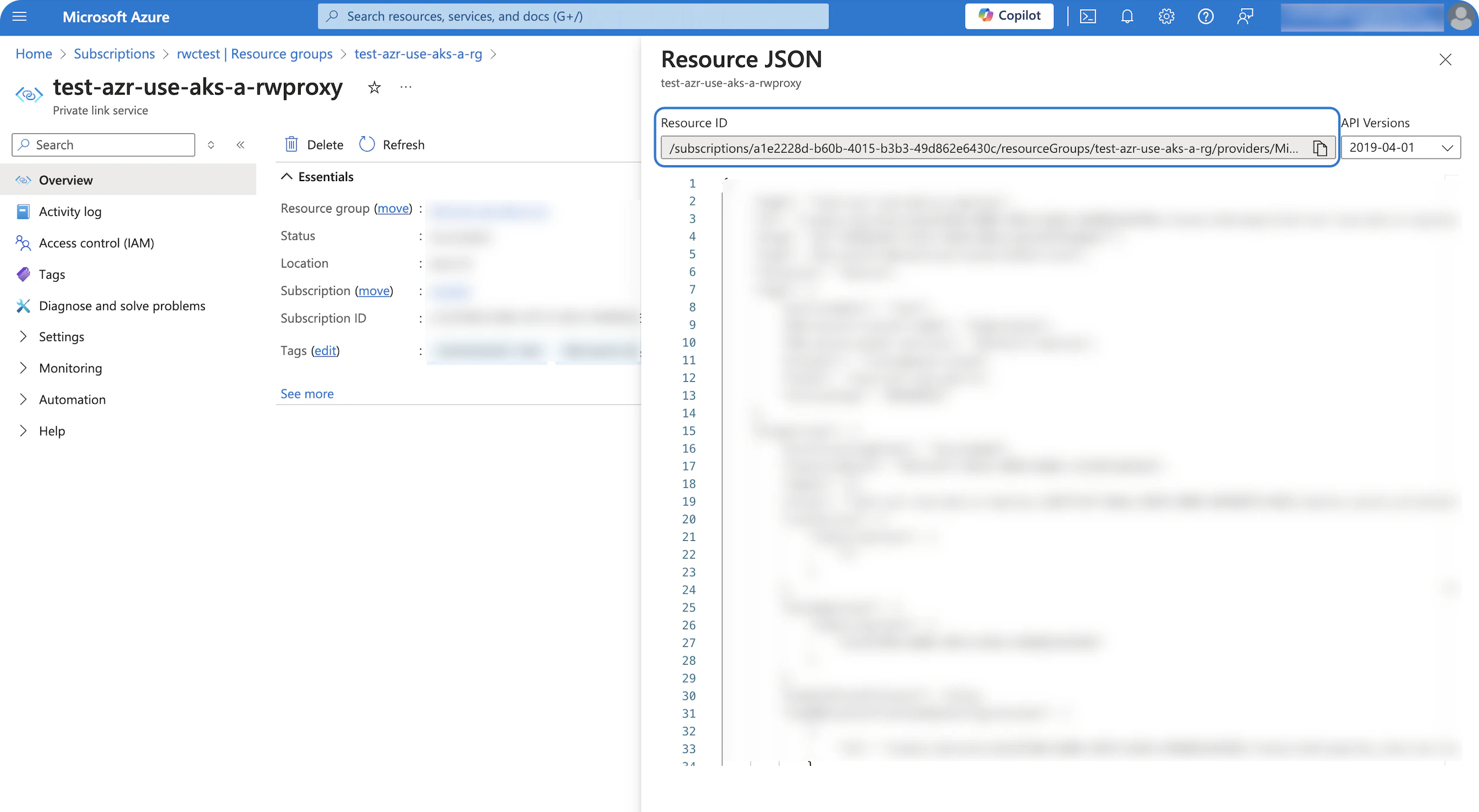
4. For **Endpoint service name** or **Service attachment** or **Private link service resource ID:**
You can find it in the [Amazon VPC Console](https://console.aws.amazon.com/vpc/) → **Endpoint services** → **Service name** section.
 You can find it in the [Google Cloud Console](https://console.cloud.google.com/) → **Network services** → **Private Service Connect**.
 You can find it in the [Azure Portal](https://portal.azure.com/) → **Private link service** section.
 5. Click **Confirm** to create the connection.
For inquiries about PrivateLink for Confluent private Kafka clusters, please reach out to our [support team](mailto:cloud-support@risingwave-labs.com) first. We will handle these manual steps:
* Before provisioning a RisingWave PrivateLink, ensure the cluster's Availability Zones (AZs) are a subset of the AZs offered by RisingWave.
* Manually add DNS records after provisioning the PrivateLink.
We aim to automate this process in the future to make it even easier.
## What's next
Now, you can create a source or sink with the PrivateLink connection using SQL.
For details on how to use the VPC endpoint to create a source with the PrivateLink connection, see [Create source with PrivateLink connection](/integrations/sources/kafka#create-source-with-privatelink-connection); for creating a sink, see [Create sink with PrivateLink connection](/integrations/destinations/apache-kafka#create-sink-with-privatelink-connection).
5. Click **Confirm** to create the connection.
For inquiries about PrivateLink for Confluent private Kafka clusters, please reach out to our [support team](mailto:cloud-support@risingwave-labs.com) first. We will handle these manual steps:
* Before provisioning a RisingWave PrivateLink, ensure the cluster's Availability Zones (AZs) are a subset of the AZs offered by RisingWave.
* Manually add DNS records after provisioning the PrivateLink.
We aim to automate this process in the future to make it even easier.
## What's next
Now, you can create a source or sink with the PrivateLink connection using SQL.
For details on how to use the VPC endpoint to create a source with the PrivateLink connection, see [Create source with PrivateLink connection](/integrations/sources/kafka#create-source-with-privatelink-connection); for creating a sink, see [Create sink with PrivateLink connection](/integrations/destinations/apache-kafka#create-sink-with-privatelink-connection).